SQL Mocker for Power BI
Prepare cleaner SQL for Power BI without connecting AI to your database.
Use SQL Mocker to create SQL statements using natural language, review tables and columns, check relationships, and test query logic with dummy data before connecting Power BI to a real database.
Natural language SQL
Ask for the dataset you need and generate SQL using the tables, columns, and relationships you reviewed.
No production connection
Work from schema metadata and dummy data, without giving SQL Mocker database credentials or live data access.
Power BI-ready thinking
Prepare cleaner tables for reporting before pasting SQL into Power BI Desktop or your usual database tool.
A safer workflow before Power BI connects
Power BI users often need SQL that joins the right tables, selects only useful columns, and avoids messy datasets. SQL Mocker gives you a place to shape and review that SQL first.
- Upload, build, or extract schema metadata from your database.
- Review primary keys, foreign keys, and relationship paths before generating SQL.
- Hide columns you do not need so generated SQL stays focused.
- Test prompts against dummy data before using the SQL in your real database.
Dummy data is for checking logic
Your real dataset stays in your database.
SQL Mocker generates dummy rows from your reviewed schema so you can test the shape and logic of the SQL before using it on real data. You can spot missing joins, filters that return no rows, duplicated results, unclear column names, and reporting fields that need simplifying before you paste the SQL into Power BI or your database tool.
Example
From existing schema to SQL
Use your existing tables and generated dummy data to check the SQL logic before using it with Power BI.
SELECT
  r.region_name,
  COUNT(DISTINCT c.customer_id) AS customer_count,
  COUNT(o.order_id) AS order_count,
  SUM(o.amount) AS furniture_revenue
FROM regions AS r
INNER JOIN customers AS c
  ON c.region_id = r.region_id
INNER JOIN orders AS o
  ON o.customer_id = c.customer_id
WHERE o.product_category = 'Furniture'
GROUP BY r.region_name
ORDER BY furniture_revenue DESC;Why this helps Power BI users
Reduce the friction between database structure and report-ready data.
Instead of starting inside Power BI with a complex database and uncertain joins, you can first describe the dataset you want, inspect the SQL, and check whether the relationships make sense.
SQL Mocker is useful for analysts, consultants, and report builders who need help shaping SQL but do not want an AI assistant connected directly to production systems.
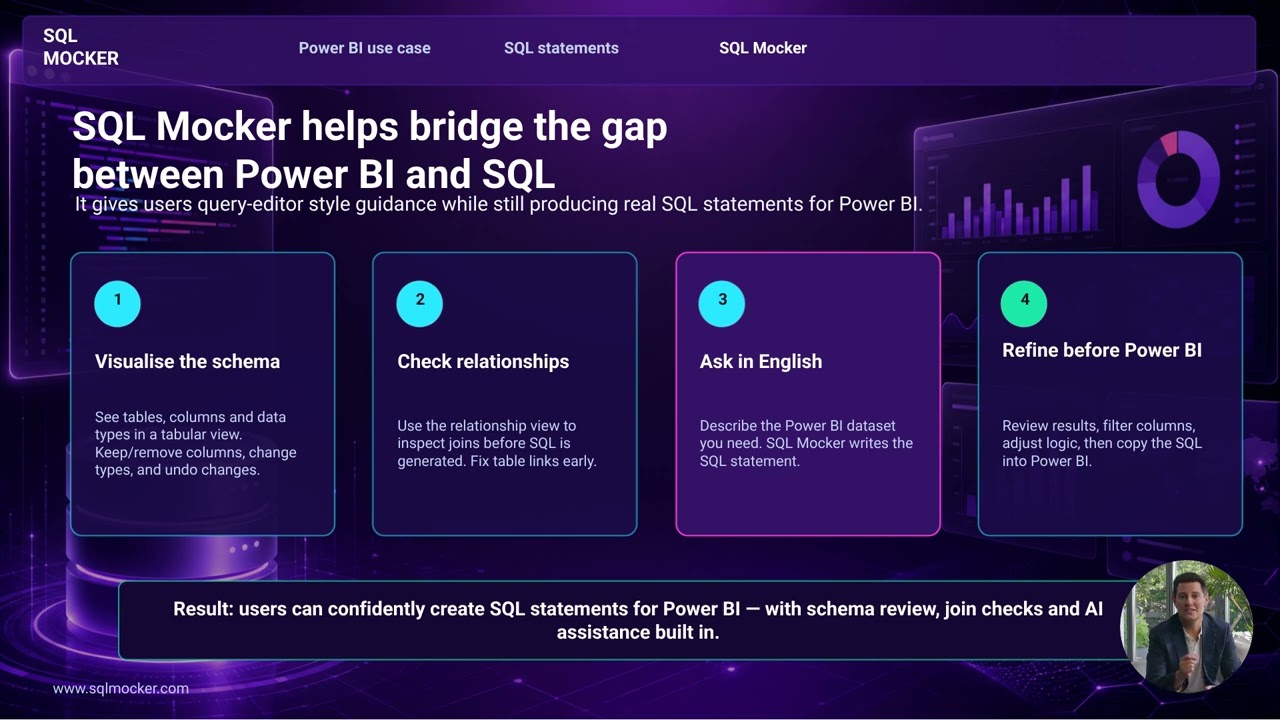
Add schema
Upload, build, or extract table and column metadata.
Review joins
Check primary keys, foreign keys, and relationship paths.
Ask in natural language
Describe the Power BI dataset or metric you need.
Copy SQL
Review the query, then use it in your real database workflow.
SQL Mocker for Power BI FAQ
Does SQL Mocker connect directly to Power BI?
No. SQL Mocker helps you prepare SQL before you use it in Power BI or your database tool. You review and copy the SQL yourself.
Does SQL Mocker connect to my database?
No. SQL Mocker works from schema metadata and generated dummy data. It does not ask for database credentials or connect to production data.
Can it help me choose fewer columns for Power BI?
Yes. You can hide columns from the active schema context so the generated SQL focuses on the fields you expect to use in your dataset.
Can I use it with SQL Server, PostgreSQL, MySQL, or other databases?
Yes. SQL Mocker can generate SQL for common database dialects. You should still review and test the SQL in your own database environment before relying on it.
Try SQL Mocker before your next Power BI dataset build.
Create a safe schema replica, ask for the dataset you need, and review the SQL before connecting Power BI to your database.